When you run QuickBooks you may be presented with a screen such as this:
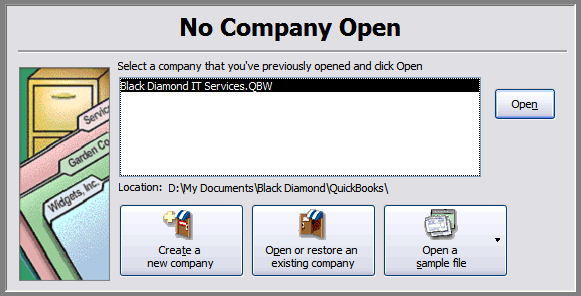
If you have company files listed that non longer exist, have been moved, or are for some other reason unable to open, you probably want to prevent them from being displayed. Here’s how:
QuickBooks doesn’t provide a simple “delete” or “remove from list” option. Instead you will need to first open a valid company file. Once you have opened and logged into a valid company, click the “File” menu. Then select “Open Previous Company”, and then “Set number of previous companies…”
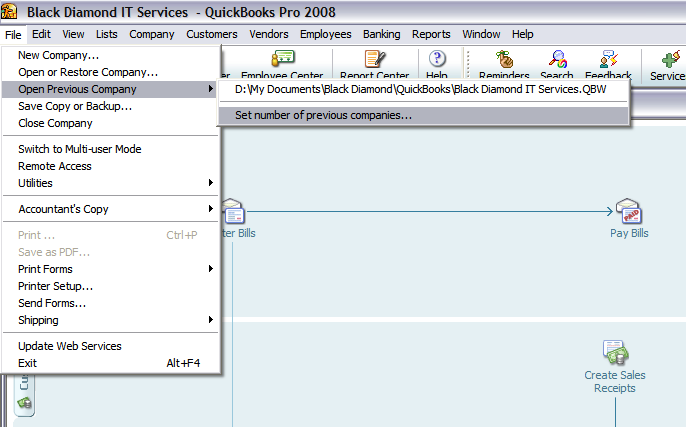
One the window that opens, make note of the value in the text box, change the value to “1”, then press “OK.”

Now click the “File” menu. Then select “Open Previous Company”, and then “Set number of previous companies…” This time, change the value in the text box back to the original number. Press “OK.”
That’s it.
6 responses so far ↓
1 greg // Nov 18, 2008 at 5:05 PM
Thanks for the tip – this helps a great deal!
2 jeff // Jun 4, 2009 at 2:54 PM
fantastic. thank you
3 Crystal // Jun 28, 2009 at 5:27 PM
Thanks! Was looking all for this!
4 Christian // Oct 14, 2009 at 6:18 PM
Thank you for taking time out of your day, to help us all. Tips like this keep us functioning, on the cheap. Cheers for teaching me another trick.
5 Jeremy // Oct 19, 2009 at 3:34 PM
Great tip, looked all over Quickbooks forum for solution and no answers found, Thank you for posting this help
6 Rosemary // Jan 31, 2010 at 10:07 AM
Thank you, thank you, thank you.