The default action for the Power button on the start menu in Windows Vista is Sleep, which puts your computer in a low power (but still “on”) state. Some (most?) users would prefer that the power button shutdown Vista. You can configure this setting easily by using the advanced power settings panel found nested deep in the Control Panel.
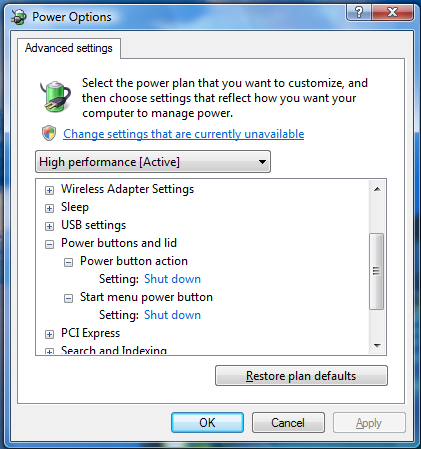
To get to the advanced power settings, you will need to open Control Panel -> Power Options -> Change Plan Settings -> Change Advanced Power Settings. Once there, you will see a window like this:
(Click to enlarge)
Under the “Power buttons and lid” branch, you can change the behavior of the Start Menu’s power button as well as the physical power button on your computer case.
PS: You can also get directly to the advanced power settings window by opening the Windows “Run…” dialog (hold the Windows key and tap “R”) and then typing “powercfg.cpl,1”.